FREE Sketch Turn Indicator Icon
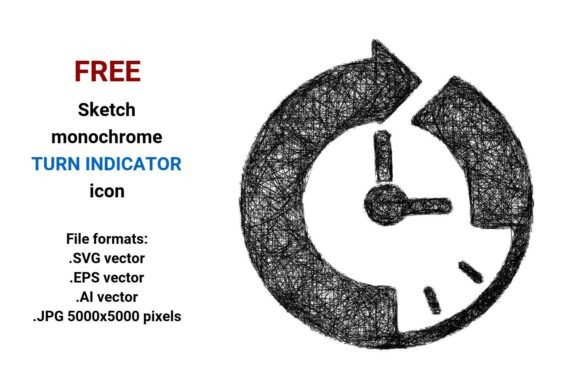
Need a clean, expressive, and instantly recognizable way to signal whose turn it is in your game, app, or interactive experience? The FREE Sketch Turn Indicator Icon delivers — not as a generic symbol, but as a hand-drawn, human-feeling visual cue that balances clarity with character. It’s more than just a “turn” icon: it’s a subtle nod to intention, rhythm, and participation — drawn with the warmth of pencil on paper, yet built for digital precision.
This resource includes four versatile file formats: .SVG (ideal for web interfaces and responsive UIs), .EPS and .AI (fully editable vector files for designers using Adobe Illustrator or professional print workflows), and a high-res .JPG at 5000×5000 pixels (perfect for mockups, presentations, or large-format displays). All are black and white — minimalist by design, maximally adaptable.
Why This Turn Indicator Stands Out
Most turn indicators default to rigid geometry: arrows, numbered circles, or flat UI icons. The FREE Sketch Turn Indicator Icon breaks that pattern — not by sacrificing function, but by adding personality. Its sketchy line work, slight irregularity, and visible pencil-like texture communicate approachability without compromising legibility. That’s critical when you’re designing for real people: players who need quick orientation, educators guiding classroom activities, or developers building collaborative tools where tone matters as much as timing.
Because it’s a vector image, every curve, stroke, and negative space scales infinitely — from a 16-pixel favicon to a 36-inch trade show banner — with zero pixelation or distortion. Unlike raster-only assets, this isn’t just “usable.” It’s future-proof: ready for retina screens, dark mode interfaces, and adaptive layouts without rework.
Creative Uses Across Real Projects
Designers and product teams use this icon not only for board game apps or turn-based strategy tools, but also in contexts you might not expect:
- Educational platforms — Highlighting student speaking turns in live discussion modules or asynchronous peer review dashboards.
- Collaborative whiteboard tools — As a draggable “handoff” marker between team members during remote workshops or design sprints.
- Accessibility overlays — Paired with screen reader labels like “Player 2’s turn,” its clear silhouette supports visual scanning while remaining low-cognitive-load.
- Startup pitch decks — Embedded in process flows or user journey maps to illustrate phased interaction — e.g., “user submits → system validates → player confirms.”
- Physical-digital hybrid games — Printed onto cards or tokens using the .EPS or .AI files, then scanned into companion apps for seamless transition between analog and digital play.
Adapting It Thoughtfully
“Sketch” doesn’t mean “unpolished.” It means intentional imperfection — and how you adapt this icon depends entirely on your audience and medium. A children’s learning app might pair it with soft pastel fills (added easily in Illustrator using the vector layers), while a finance dashboard could keep it stark black-on-white for maximum neutrality.
For consistency across your interface:
- Stick to one weight — The original line thickness is calibrated for readability at small sizes. Avoid manually thickening strokes unless testing confirms clarity at your target scale.
- Respect negative space — Don’t crowd it with text or other icons. Let the sketch breathe — especially important in mobile UIs where touch targets matter.
- Test contrast — Even in black and white, background luminance affects perception. Verify visibility against both light and dark UI themes using WCAG-compliant contrast checkers.
If you're building a design system, treat this as a foundational “state indicator” component — alongside loading spinners or confirmation checkmarks. Its sketch aesthetic pairs naturally with other hand-drawn elements (like pencil sketch icon, line art navigation sketch icon, or rough sketch pictogram) — creating visual cohesion without monotony.
Who Benefits Most — and How
Indie game developers get production speed: drop the .SVG into Unity or Godot as a UI sprite, then animate rotation or opacity to signal turn transitions. No licensing fees, no attribution required — truly free to integrate.
Teachers and workshop facilitators use the .JPG version in Google Slides or Canva to build turn-tracking slides — color-code players by adding simple overlays, then export as PDF handouts.
Freelance UI/UX designers leverage the .AI file to extract individual paths — converting the sketch into a custom font glyph, or combining it with other icons to build a cohesive “player turn” icon set (e.g., “start turn,” “end turn,” “skip turn”).
Bloggers and content creators embed the SVG directly in articles about game design principles or collaborative workflow tools — lightweight, accessible, and visually distinct from stock imagery.
Keeping It Original — Without Reinventing the Wheel
You don’t need to redraw the icon to make it yours. Try these grounded, effective tweaks:
- Add a subtle shadow or glow in Figma to lift it off the background — no vector editing needed.
- Use the sketched quality as a design anchor: match typography choices to the icon’s energy (e.g., a friendly sans-serif like Inter or Recursive).
- In physical prototypes, print the .EPS on textured paper — the grain enhances the hand-drawn feel, reinforcing authenticity.
- For multilingual audiences, pair it with minimal, universal labels — “Your Turn” in bold type, or an unambiguous number — rather than relying solely on iconography.
The FREE Sketch Turn Indicator Icon works because it’s both specific and flexible: rooted in the idea of “turn” as a shared, human moment — not just a technical state. Whether you’re shipping a mobile game, prototyping a classroom tool, or refining a SaaS dashboard, it offers clarity without coldness, simplicity without sterility.
Download it. Drop it in. Tweak it thoughtfully. And let the next turn begin — clearly, confidently, and with just the right amount of human touch.